












#
Tested on iPad using examples from the author’s own city. Your buildings, upgrade levels, kits and available options will differ. PC/browser verification is pending.
Introduction: Building Management has changed more than one screen #
The updated Building Management System brings together several jobs that previously meant moving backwards and forwards between the city, individual buildings and Inventory.
The most useful change is not simply the addition of a Building Management window. The new system gives you different ways to start depending on the question you are trying to answer.
You can start with your city to see what can currently be upgraded, start with an Inventory item to find out whether it has an available use, or start with a particular building to understand its upgrade path, what you already own and what you still need.
For players with mature cities and years of event buildings, upgrade kits, Selection Kits and fragments, this can remove a considerable amount of trial and error.
This guide concentrates on the practical questions:
- What can I upgrade in my city?
- Can I use this particular kit or Inventory item?
- What versions of this building do I already have?
- What do I still need to complete its progression?
- Where is the building in my city?
- What opportunities are sitting unused in Inventory?
Scope note: Great Buildings are not included in the updated Building Management system covered by this guide.
What are you trying to do? #
The easiest way to understand the new system is to start with the problem rather than the name of the feature.
Start with: Build → Upgrade
Upgrade changes the city into a visual selection view showing the buildings and objects that are currently available for upgrading.
I have an item in Inventory and want to know whether I can use it #
Start with: Inventory → Hammer
The hammer gives you an immediate availability indicator.
Grey hammer
No action is currently available for that item.
Gold hammer
The item has an available action.
A gold hammer can lead to an existing city target or to an undeployed opportunity such as a usable Selection Kit.
I want to understand a particular building and its upgrade path #
Start with: Building Management
Building Management brings together the versions you already have in the city, the complete progression, what is needed for one full building and matching items already held in Inventory.
I know I own a building but cannot find it #
Start with: View
View takes you back to the appropriate city location and visually isolates the relevant building from its surroundings.
I can do something, but I am not sure whether I should #
Stop and decide
The new system tells you much more clearly what is possible.
It does not decide what is strategically sensible.
An unused building, upgrade kit or Selection Kit may quite deliberately be:
- kept for future use;
- waiting for another building;
- retained while you decide what to do;
- unsuitable for your current city;
- more valuable to you later than it is now.
No action is also a valid decision.
Guide use-flow #
WHAT DO YOU WANT TO DO? #
Find everything I can upgrade
↓
CITY
↓
Build → Upgrade
↓
All currently upgradeable buildings and objects are shown with their locations.
See whether a particular item can be used #
↓
INVENTORY
↓
Check the hammer
↓
Grey → no action currently available
Gold → an action is available
↓
Existing target? → City View → starred target(s)
or
Undeployed opportunity? → available building/Selection Kit choices
Understand one building family #
↓
BUILDING MANAGEMENT
↓
In City
What versions and how many?
↓
Full Upgrade Path
Where do my buildings sit in the progression?
↓
Needed for one full building
What do I own and what do I still need?
↓
Matching Inventory
What buildings, kits, Selection Kits or fragments do I already have?
Find a particular building #
↓
VIEW
↓
City location is shown and the relevant building is visually isolated.
Then every route reaches the same final question #
What do I want to do with this opportunity? #
USE NOW
or
KEEP
or
UNDECIDED
or
SAVE FOR FUTURE
Available does not mean “use it” #
The new system shows what can be upgraded, constructed or selected. It does not decide whether doing so is strategically sensible. An unused building, Selection Kit or upgrade may be deliberately reserved, undecided or kept for future use.
1. Find the available action #
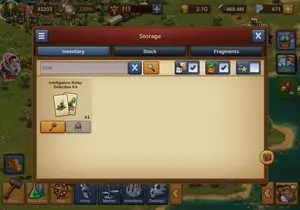
A gold hammer indicates that this Inventory item has an available action.
2. Check the available choice #
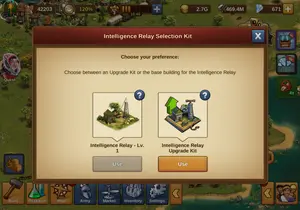
The Selection Kit can contain choices with different availability. Here, the Level 1 building is unavailable while the Upgrade Kit can be used.
3. Find the city target #
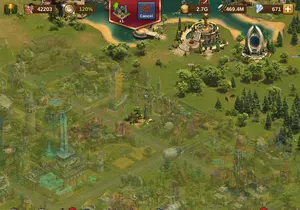
Forge identifies the compatible city target with a star. At this stage the upgrade has not yet been applied and Cancel remains available.